CapCut AI Template Generator: 35 Script-to-Video Prompts for Ready Reels
The CapCut AI template generator, often used through script-to-video features, can turn a short script into a ready video with visuals, voiceover, captions and music in a few minutes. This guide shows how AI script-to-video works and gives you 35 copy-ready script prompts for education, business, motivation, travel, food and festivals, plus prompts to improve your script and polish the AI draft. It is one of many free creator guides on Prompt Seen.
Each prompt has a copy button. Paste it into an AI script-to-video tool, review the draft and refine it.
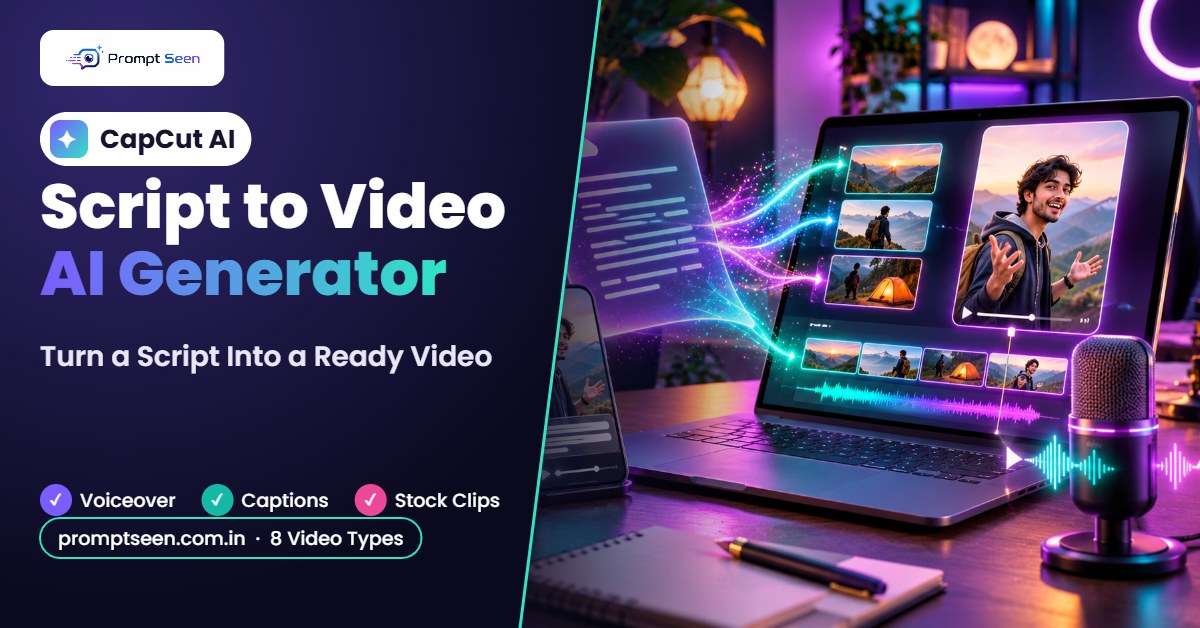
If you have ideas but little time to film and edit, script-to-video tools can be a powerful shortcut.
What Is an AI Template Generator?
An AI template generator creates a video template or draft from your instructions. In script-to-video mode, you write or paste a script, and the AI picks visuals, adds a voiceover or captions, chooses music and assembles a vertical video. Some tools also generate reusable templates based on a description of the style you want.
Why it saves time
Instead of searching for stock clips, recording a voiceover and timing captions manually, you describe the video and let the AI do the first draft. You then spend a few minutes improving it.
What it cannot do
AI cannot check facts, understand your brand fully or capture your real products and personality. Always review the draft and replace generic parts with your own content where it matters.
Who benefits most
AI script-to-video is especially useful for faceless channels, teachers, coaches, small businesses and social media managers who need regular videos but lack time to film everything. It is also handy for testing ideas: you can create a quick draft, see how it feels and decide whether to film a fuller version yourself.
Creators who appear on camera can still use it for B-roll, explainers or quick announcements between their main videos.
How Script-to-Video Works
- You provide a script or a short topic description.
- The AI breaks the script into scenes, usually one per sentence.
- It matches each scene with stock footage or generated visuals.
- It adds a voiceover, captions and background music.
- You review and edit the draft, then export.
Because the AI usually creates one scene per sentence, short, clear sentences give much better results than long paragraphs.
Think of each sentence as a shot. If a sentence would need two very different visuals, split it into two sentences.
Writing Scripts That Work
| Rule | Why | Example |
|---|---|---|
| Start with a hook | Grabs attention instantly | “Struggling to focus?” |
| Use short sentences | One scene per sentence | “Study in 25-minute blocks.” |
| Be specific | Better visual matches | “Misty tea gardens” not “nice place” |
| End with a call to action | Encourages engagement | “Follow for more tips.” |
| Keep it short | Fits reel length | 60 to 80 words for 30 seconds |
A short, clear script is the foundation of every good AI video.
How to Use These Script Prompts
- Open an AI script-to-video or template generator tool.
- Copy a prompt from below and paste it, or replace the script with your own.
- Choose the format, voice and style options.
- Generate the draft and watch it fully.
- Replace weak clips, fix captions and adjust the voice or music.
- Export at 1080p and post.
35 CapCut AI Template Generator Script Prompts
Prompts are grouped by purpose. Replace the example scripts with your own topics while keeping the structure.
Educational Script Prompts
Turn knowledge into ready reels.
Business and Promo Script Prompts
Ads and brand videos from a few lines.
Motivation and Lifestyle Script Prompts
Inspiring and relatable reels.
Travel and Food Script Prompts
Show places and dishes.
Festival and Occasion Script Prompts
Quick greetings from text.
Script Improvement Prompts
Better scripts make better videos.
Editing the AI Draft Prompts
Polish the generated video.
Hindi and Regional Script Prompts
Create videos in the languages your audience speaks.
Adapt any prompt to your niche by changing the topic while keeping the structure.
Walkthrough: From Idea to Ready Reel in Ten Minutes
Step 1: Write a 60-word script
Write a hook, three short points and a call to action. Read it aloud to check it sounds natural.
Step 2: Add visual hints
After the script, add one line describing the visuals, voice and music you want.
Step 3: Generate
Paste it into the AI tool, choose vertical format and generate the draft.
Step 4: Review and fix
Swap any clips that do not match, correct captions and check the voice pronunciation.
Step 5: Personalise and export
Add your own clip at the start or end, apply your colour look and export.
Choosing Voice, Music and Style
Most AI template generators let you choose a voice, a music mood and a visual style. These choices shape how viewers feel about your video. A calm, warm voice suits education and wellness; an energetic voice suits promos and motivation; a deep voice suits storytelling. Music should support the voice, not compete with it, so keep it quieter during narration.
| Content type | Voice | Music | Style |
|---|---|---|---|
| Education | Clear, friendly | Light background | Clean graphics |
| Promo | Energetic | Upbeat | Bold text |
| Motivation | Deep, steady | Cinematic | Dramatic visuals |
| Travel | Warm, curious | Acoustic | Scenic footage |
| Festival | Cheerful | Festive | Bright colours |
Building a Script Library
Save every script that performs well in a notes app or document, along with the visual hints and settings you used. Over time, this library becomes a set of proven templates you can reuse with new topics. Changing only the subject while keeping the structure is one of the fastest ways to produce consistent, high-quality AI videos.
Reusing proven structures saves time without making videos feel repetitive, as long as the topics change.
Making CapCut AI Template Generator Videos Your Own
AI drafts can look similar because many people use the same stock footage and voices. Make yours distinctive by adding your own clips, recording your own voice where possible, using your brand colours and writing scripts in your natural style. Viewers connect with personality, not just information.
Mixing AI Drafts With Real Footage
The strongest AI videos combine generated drafts with real clips. Use the AI draft for structure, voiceover and captions, then replace two or three scenes with your own footage: your product, your shop, your face or your city. Real clips build trust and make the video feel authentic, while AI handles the time-consuming assembly.
- Open with a real clip of you or your product.
- Keep AI visuals for abstract or hard-to-film ideas.
- End with a real clip and your call to action.
- Match colour looks so AI and real clips blend.
Checking the Draft Like an Editor
Watch the draft three times: once for the story, once for visuals and once for captions and voice. On the first pass, ask whether the message is clear. On the second, look for clips that feel off-topic or low quality. On the third, read every caption and listen for mispronounced names or words. This simple routine catches most problems before you publish.
Fixing small issues before posting protects your credibility with viewers.
Common Problems and Fixes
Clips do not match the script
Quick fix
Add visual hints to the prompt and replace mismatched clips manually.
Voice sounds robotic
Quick fix
Use shorter sentences, try a different voice or record your own.
Video is too long
Quick fix
Cut the script to 60 to 80 words for a 30-second reel.
Facts are wrong
Quick fix
Always check facts, names and numbers before publishing.
A Weekly AI Video Plan
| Day | Script type | Goal |
|---|---|---|
| Monday | Educational tip | Value and saves |
| Wednesday | Motivation | Shares |
| Friday | Business or promo | Sales or leads |
| Sunday | Travel or food | Lifestyle connection |
Writing four short scripts in one sitting and generating drafts for the week takes about an hour. Polishing each video then takes only a few minutes, making daily or near-daily posting realistic even with a busy schedule.
Consistency in topic and style helps your audience know what to expect from you.
Responsible AI Video Creation
AI-generated videos should be accurate and honest. Do not present AI visuals as real footage of real events, avoid making claims you cannot support, especially about health or money, and label AI content where platforms require it. To understand the technology behind these tools, read the Wikipedia article on generative artificial intelligence.
AI script-to-video tools are best seen as assistants. They handle the repetitive work of finding visuals, recording voiceovers and timing captions, while you provide ideas, accuracy and personality. Combine the two, and you can publish helpful, engaging videos far more often than before.
Start with one script today.
More Guides
For a deeper guide to script-based video, see our InVideo AI prompt guide and reel from a text prompt. For automatic editing of your own clips, read CapCut AutoCut.
Write one 60-word script today, add visual hints and generate your first draft. With a little polishing, the CapCut AI template generator approach can turn your ideas into ready reels faster than ever.
Related Guides
Frequently Asked Questions
What is the CapCut AI template generator?
It refers to AI features, such as script-to-video, that create a video draft or template from your script or description.
How do I write a good script for AI video?
Start with a hook, use short sentences, be specific about visuals and end with a call to action, keeping it to 60 to 80 words for 30 seconds.
Is CapCut available in India?
CapCut has not been officially available on Indian app stores since 2020. Similar script-to-video tools include InVideo AI and Canva.
Why do AI videos use unrelated clips?
The AI guesses visuals from your words. Add visual hints and replace mismatched clips manually.
Can I use my own voice?
Most tools let you replace the AI voice with your own recording.
Should I check AI-generated videos?
Yes. Always review facts, captions, names and numbers before publishing.