CapCut AutoCut: 36 Prompts to Turn Clips Into a Reel Automatically
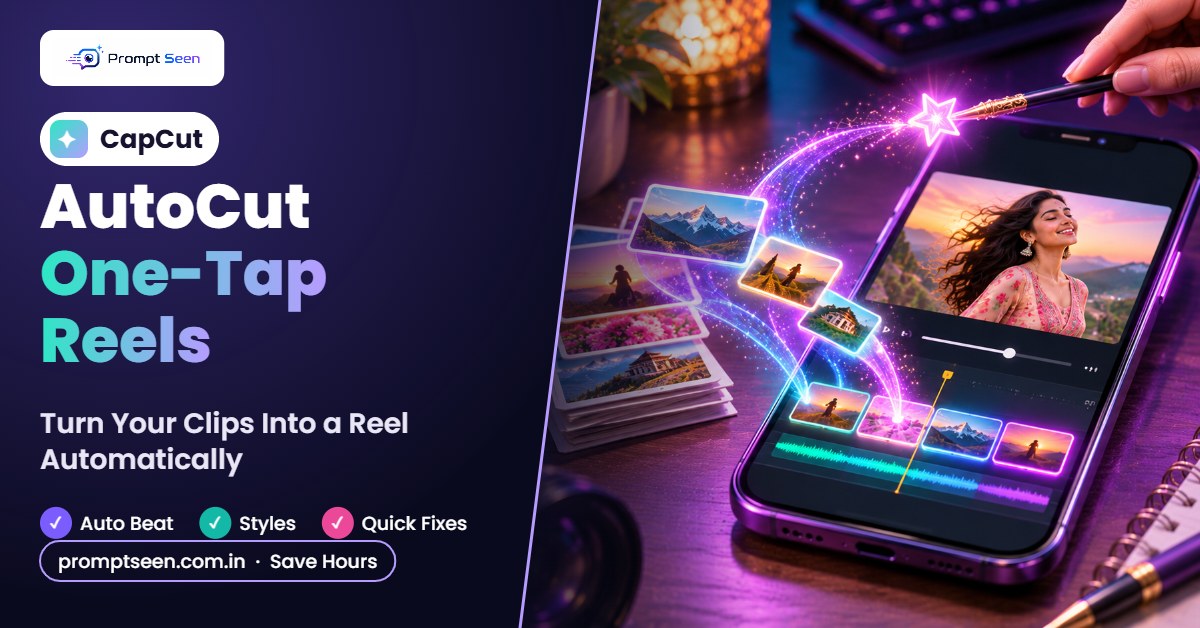
CapCut AutoCut and similar automatic editors turn a batch of clips into a ready-made reel in seconds by choosing music, cuts and effects for you. This guide explains how automatic editing works and gives you 36 copy-ready prompts for choosing clips, picking styles, polishing the result, matching your colour look, saving time and knowing when manual editing is better.
Each idea has a copy button so you can follow it step by step.
If editing has ever felt too slow or complicated, automatic editing can change how often and how easily you post.
What Is AutoCut?
AutoCut is an automatic editing feature associated with CapCut that analyses your photos and clips, picks highlights, syncs cuts to music and applies a style, producing a finished reel with very little effort. It is designed for people who want a polished video quickly without learning a full editor.
How automatic editing works
The software looks at your media, detects faces, motion and scene changes, then places clips on the beat of a chosen song. Styles add transitions, filters and text. The result is often surprisingly good, especially for travel, parties and everyday moments.
Strengths and limits
Automatic editing is fast and beginner-friendly, but it cannot understand your story, your message or the moments that matter most to you. That is why the best results come from good clip selection before and a few manual tweaks after.
Who should use automatic editing
Automatic editing is ideal for beginners who feel overwhelmed by timelines and keyframes, busy people who want to post regularly without spending hours editing, parents creating family memory videos, small business owners making weekly promos and anyone who needs a quick highlight from an event. Experienced editors also use it to create fast drafts, then refine them manually.
If you have never edited a video before, an automatic editor is a gentle starting point. It shows you what a finished reel looks like and builds your confidence before you try manual editing.
Automatic editing removes the biggest barrier to posting: time.
It is a practical tool for anyone who wants to share more often.
Automatic vs Manual Editing
| Factor | Automatic editing | Manual editing |
|---|---|---|
| Speed | Seconds to minutes | Minutes to hours |
| Skill needed | Very little | Some editing knowledge |
| Control | Limited | Full |
| Storytelling | Basic | Precise |
| Best for | Recaps, parties, quick posts | Stories, tutorials, brand content |
Most creators use both: automatic editing for quick posts and manual editing for important content.
Choose based on the goal of each reel.
How to Use These AutoCut Prompts
- Choose your best clips using the selection prompts.
- Import them into the automatic editor in a sensible order.
- Pick a style that matches the moment.
- Review the result and replace the hook if needed.
- Adjust music, timing, colour and captions.
- Export at 1080p and post.
36 CapCut AutoCut Prompts and Workflows
Prompts are grouped by stage: before, during and after the automatic edit.
Clip Selection Prompts
AutoCut is only as good as the clips you give it.
Automatic Edit Style Prompts
Choose the right style for the moment.
After the Automatic Edit Prompts
Polish what the AI created.
Colour and Look Prompts
Make automatic edits match your style.
Speed and Batch Prompts
Use automation to save time.
Use-Case Prompts
Situations where automatic editing shines.
When to Edit Manually Prompts
Know the limits of automation.
Festival and Family AutoCut Prompts
Quick memories from special days.
Use the prompts in order the first few times, then adapt them to your own workflow once you are comfortable.
Good input, smart polish.
Walkthrough: A Five-Minute Weekly Recap
Step 1: Choose ten clips
Pick your best moments from the week, following the variety mix of wide shots, people, details and action.
Step 2: Import and choose a style
Import clips in time order and choose a cheerful vlog or recap style.
Step 3: Review the draft
Watch the automatic edit. Swap the first clip for your strongest shot and move your best moment to the end.
Step 4: Polish
Apply your usual filter, remove any heavy effects and add a caption such as “This week”.
Step 5: Export
Export at 1080p and post. The whole process takes about five minutes.
Choosing the Right Clips: A Closer Look
Clip selection is the most important step when using CapCut AutoCut or any automatic editor. The software can only arrange what you give it, so feeding it strong material is essential. Look for clips that are sharp, well lit and steady. Choose clips with clear movement or emotion, such as someone laughing, waves crashing or a car passing, because automatic editors tend to highlight motion. Avoid long, static clips where nothing happens; the editor may pick a dull section.
Aim for variety. If all your clips are wide landscapes, the reel will feel flat. Mixing wide, medium and close shots gives the automatic editor more interesting options and produces a more dynamic result.
| Clip quality | Effect on the automatic edit |
|---|---|
| Sharp and well lit | Clean, professional result |
| Clear motion or emotion | More engaging highlights |
| Variety of shot sizes | Dynamic pacing |
| Blurry or dark | Lower overall quality |
| Long static clips | Dull moments may be chosen |
Picking Music for Automatic Edits
Automatic editors usually suggest music, but the default track is not always the best fit. Choose music that matches the mood of your clips: upbeat for parties and trips, gentle for family memories, cinematic for weddings. If you change the music after the automatic edit, check that cuts still feel aligned with the beat, and adjust a few clip edges manually if needed.
Saving a few favourite tracks for each mood makes this step quick.
Making CapCut AutoCut Results Your Own
Automatic edits can look generic because many people use the same styles. Personalise yours with your own hook, caption, colour look and music choice. Small adjustments make a big difference and turn an automatic draft into a reel that feels like you.
A Hybrid Workflow That Saves Time
Many creators combine both approaches. They let the automatic editor build the first draft, then spend a few minutes improving the hook, ending, timing and caption. This hybrid workflow delivers most of the speed of automation with much of the quality of manual editing.
- Let automation handle music sync and basic cuts.
- Manually choose the first and last clips.
- Adjust a few clip lengths for better pacing.
- Add your own caption, colour look and branding.
- Export and post.
With practice, this hybrid approach takes five to ten minutes per reel and produces content that feels personal rather than generic.
Editing Details Worth Checking
After every automatic edit, check three things: that the first second is strong, that no clip is cut mid-action in an awkward way and that the final clip lands neatly on the music. Fixing these three details takes a minute and noticeably improves the result.
If the automatic editor offers several versions, generate two or three and pick the one with the best opening; the variations are often surprisingly different.
Common Problems and Fixes
Edit feels random
Quick fix
Import clips in story order and remove unrelated clips.
Faces are cropped
Quick fix
Use vertical clips and adjust framing manually where needed.
Too many effects
Quick fix
Choose a calmer style or remove effects after the edit.
Music does not fit
Quick fix
Replace the track and check beat sync.
Automatic Editing for Different Platforms
| Platform | Format | Tip |
|---|---|---|
| Instagram Reels | 9:16, 15 to 30 seconds | Strong hook, bold captions |
| YouTube Shorts | 9:16, under 60 seconds | Clear title, loop ending |
| WhatsApp status | 9:16, short | Large text, quick message |
| Family TV screen | 16:9 landscape | Longer version with more clips |
Many automatic editors let you change the aspect ratio before generating. Choose the right format first so faces and key moments are framed correctly, rather than cropping afterwards.
Privacy and Sharing
Automatic editors may include any photo or clip you import, so check the final reel carefully before sharing. Remove clips that show private information, such as addresses, documents or other people who might not want to be posted. Share family reels in private groups if you are unsure.
A quick final review protects your privacy and the privacy of people in your clips.
When in doubt, keep it private and share later once you are sure everyone is comfortable with it.
Learning From Automatic Edits
Automatic editors are also great teachers. Watch how they time cuts to music, how long they hold each clip and where they place transitions. Then try recreating a similar edit manually. This is one of the fastest ways to learn the basics of video editing. For a broader view of editing principles, see the Wikipedia article on video editing.
A Weekly Routine With Automatic Editing
| Day | Task | Time |
|---|---|---|
| Daily | Save your best clips to a favourites album | 1 minute |
| Friday | Pick ten clips for the weekly recap | 5 minutes |
| Sunday | Create and polish the automatic edit | 5 minutes |
| Sunday | Post and reply to comments | 10 minutes |
Following a simple routine like this means you never run out of content, even in busy weeks. Your favourites album becomes a ready supply of clips, and the automatic editor turns them into reels with minimal effort.
Automatic editing is not about replacing creativity; it is about removing the repetitive work so you can focus on what matters: capturing great moments and sharing them in your own voice. Use automation for speed, your judgement for quality and your personality for connection.
Start small, stay consistent and let your skills grow over time.
Your favourites album is the secret to effortless weekly posting.
More Guides
For AI script-based videos, see the CapCut AI template generator guide. For more AI features, read CapCut AI tools, and for templates, the CapCut template guide.
Try CapCut AutoCut or your app’s automatic editor on your next weekend recap, spend two minutes polishing the result and compare it with your manual edits. You may find it becomes your favourite way to post consistently on busy weeks.
Related Guides
Frequently Asked Questions
What is CapCut AutoCut?
It is an automatic editing feature that turns photos and clips into a reel by selecting highlights, syncing cuts to music and applying a style.
Is AutoCut good for beginners?
Yes. It is very beginner-friendly, especially for recaps, parties and everyday moments.
Is CapCut available in India?
CapCut and its AutoCut features have not been officially available on Indian app stores since 2020. Similar automatic features exist in Instagram Edits, Google Photos, VN and InShot.
How do I get better automatic edits?
Choose fewer, stronger clips, import them in story order and polish the hook, music and caption afterwards.
When should I edit manually?
For story-driven reels, talking videos and important brand content where precise control matters.
Can automatic editing save time for businesses?
Yes. It can quickly turn weekly product or service clips into promo reels.