Happy New Year 2027 CapCut Template: Create Countdown, Fireworks and Celebration Reels with Your Photos
A Happy New Year 2027 CapCut template is a pre-built CapCut edit with fixed music, timing and effects where you only replace the photos or clips. The fastest way to find genuine ones is CapCut’s own template library: open a template, tap Use template, add your photos and export. We found 10 templates labelled for 2027 on CapCut’s official pages in late November 2026, and this guide lists them with editing steps, photo tips and prompts for creating your own countdown and fireworks visuals.
Why 2027 templates are still scarce in November
Template creators usually publish year-specific designs in the last two weeks of December, when search interest peaks. In late November, most “Happy New Year” templates on CapCut still carry 2026 in their title or on-screen text. That matters, because a template with a printed year cannot always be edited.
So this list includes only templates whose official CapCut title mentions 2027. Several are new and lightly used, which is normal this early. A small use count is not a quality problem; it simply means you are early. Bookmark this page and check CapCut again around 20 December, when many more 2027 designs will appear.
10 Happy New Year 2027 CapCut templates
Goodbye-2026 and welcome-2027 transitions
1. Good Bye 2026
The most used 2027 template on CapCut’s listing when we checked. It is built around the idea of closing one year and opening the next, so it suits a mix of your favourite 2026 photos followed by a single bright New Year shot.
2. Welcome 2027
A “photo dump” style template that turns a handful of 2026 memories into a quick welcome-2027 reel. Choose photos with different backgrounds so each cut feels like a new moment.
3. Welcome 2027 Trend
A slow-motion trend template. Slow-motion edits look best with video clips that have natural movement, such as hair in the wind, sparklers or people turning towards the camera.
Happy New Year 2027 greeting templates
4. Happy New Year 2027 (341 uses)
A greeting template from the creator series titled “HAPPY NEW YEAR 2027”. Use a clear portrait or a family photo with good lighting, because greeting templates hold each frame for longer.
5. Happy New Year 2027 (13 uses)
A second design in the same creator series. Open both previews and pick the one whose colours match your photos, rather than editing your photos to fit the template.
6. Happy New Year 2027 (2 uses)
The third design from this series and the least used when we checked, which makes it a good pick if you want your greeting to look less common.
7. Happy New Year 2027 (new upload)
A recent upload listed under the same title. New templates sometimes change or disappear, so preview it once more before you plan your midnight post around it.
8. Happy New Year 2027 (newest listing)
Listed on CapCut with the title “heppynewyear2027”. It had no uses yet when we checked, so treat it as an experiment and preview it fully before relying on it.
Seasonal and planning templates
9. Christmas 2026–2027
Combines Christmas and New Year in one template, which is handy if you want a single reel for the whole holiday week from 25 December to 1 January.
10. 2027 in 52 Weeks?
A goal-setting style template rather than a party edit. It works for a 1 January post about your plans, fitness goals or a learning challenge for 2027.
Which format suits your post?
Our recheck showed that not every New Year template is vertical. Three of the greeting designs are square (1:1) or 3:4, which suit a feed post better than a full-screen Reel. Match the template’s shape to where you will post it:
| Shape | Templates in this list | Best place to post |
|---|---|---|
| Vertical 9:16 | Good Bye 2026, Welcome 2027, Welcome 2027 Trend, the newest 2027 listing, Christmas 2026–2027, 2027 in 52 Weeks? | Reels, Stories, Shorts and WhatsApp Status |
| Square 1:1 | Happy New Year 2027 (341 and 13 uses) | Feed posts and Facebook |
| Portrait 3:4 | Happy New Year 2027 (2 uses and new upload) | Feed posts; add a blurred background if you need 9:16 |
Clip counts vary just as much. One-clip templates such as Good Bye 2026 only need a single great photo or video, while Welcome 2027 asks for 65 clips, which makes it a full photo dump. Check the number before you start choosing photos so you are not hunting for extra pictures at 11:50 pm.
How to use a CapCut New Year template step by step
- Pick your photos before opening CapCut. Count the template’s slots in the preview, then choose that many photos or clips. Most New Year templates need between one and fifteen.
- Open the template. Tap Use Template in CapCut on a card above. On a phone with CapCut installed, the template opens in the app; on a computer, it opens CapCut’s web editor if it is available in your region.
- Tap Use template. CapCut asks you to select media for each slot. Put your strongest photo first, because the opening frame decides whether viewers stay.
- Check the auto-crop. Templates crop photos automatically. Tap each slot and adjust the crop so faces sit in the middle of the frame.
- Edit the text. If the template allows text edits, add your name, family name or a short message. Keep it under six words so it can be read in a second.
- Preview with sound. Watch the full reel once with the volume up. If a beat lands on a weak photo, swap the order of two photos.
- Export in high quality. Export at 1080p if the option appears. Avoid exporting twice or forwarding the file through chat apps before uploading, as that adds compression.
- Upload as a Reel. If the template’s music is not available on your platform, mute it and choose a song from the platform’s own music library.
Choosing the right photos for a fireworks or countdown template
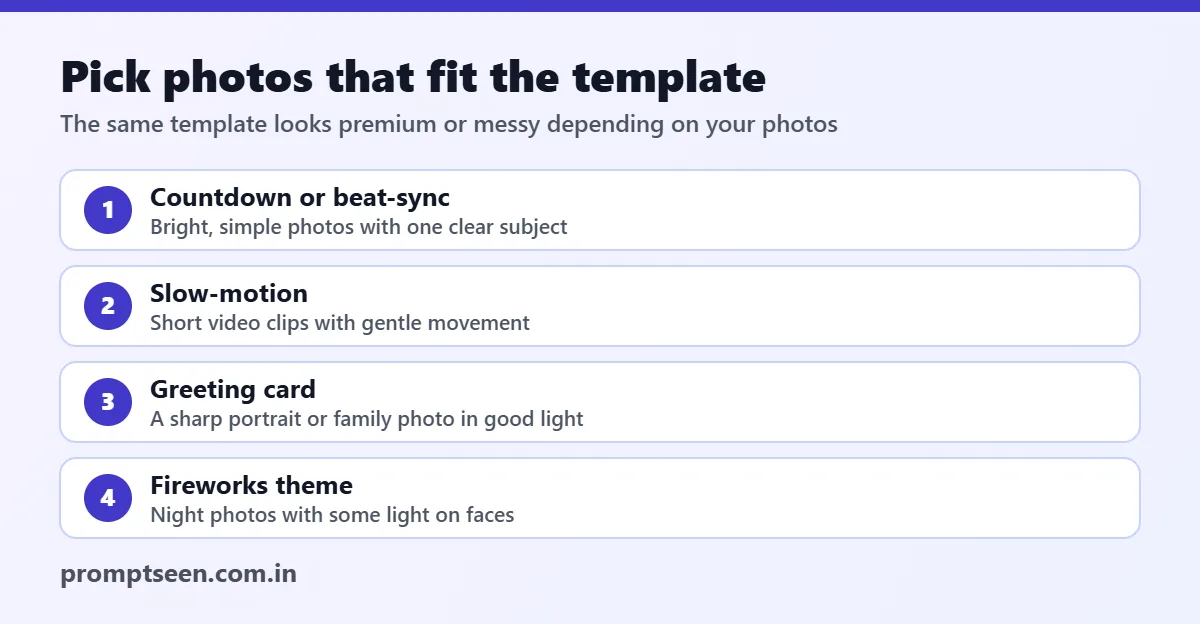
The same template can look premium or messy depending on the photos you drop in. These rules help most New Year edits.
| Template style | Best photos | Photos to avoid |
|---|---|---|
| Countdown or beat-sync | Bright, simple photos with one clear subject | Group shots where faces are tiny |
| Slow-motion | Short video clips with gentle movement | Still photos, which look frozen in slow motion |
| Greeting card | A sharp portrait or family photo in good light | Dark party photos taken with flash |
| Photo dump / recap | Varied locations and moments from the year | Ten nearly identical selfies |
| Fireworks theme | Night photos with some light on faces | Pitch-black photos where only the sky is visible |
For more ideas on picking photos for templates with a fixed number of slots, see our guide to CapCut photo templates.
Create your own countdown and fireworks visuals with AI
If your photos look plain, you can generate a festive background or a countdown card with an AI image tool and place it in a template slot. Gemini and ChatGPT can both create images from text; Google explains the basics in its help article on creating images with Gemini Apps. Always label clearly that these images are AI-generated if you use them in a paid promotion.
Midnight countdown card
Create a vertical 9:16 image of a large glowing “2027” made of soft golden light over a dark navy sky, with a few fireworks in the background and empty space at the top for text. Clean, modern, no extra words.
Indian rooftop fireworks
Create a realistic vertical photo of a rooftop in an Indian city at midnight on New Year’s Eve, with colourful fireworks over the skyline, fairy lights on the railing and warm light, no people, no text.
Add sparklers to my photo
Edit my uploaded photo to add a lit sparkler in my hand and soft bokeh lights in the background, as if taken on New Year’s Eve. Keep my face, hair, clothes and expression exactly the same. Natural, realistic lighting.
Family greeting background
Create a horizontal festive background with marigold garlands, diyas and gold confetti on a deep maroon wall, with a blank centre area for a family photo. Warm, elegant and Indian in style, no text.
Goodbye 2026 title card
Create a minimal vertical title card that says “Goodbye 2026, Hello 2027” in clean white letters on a soft gradient from dusk purple to sunrise orange. No other elements.
Build a 2027 countdown reel from scratch in CapCut
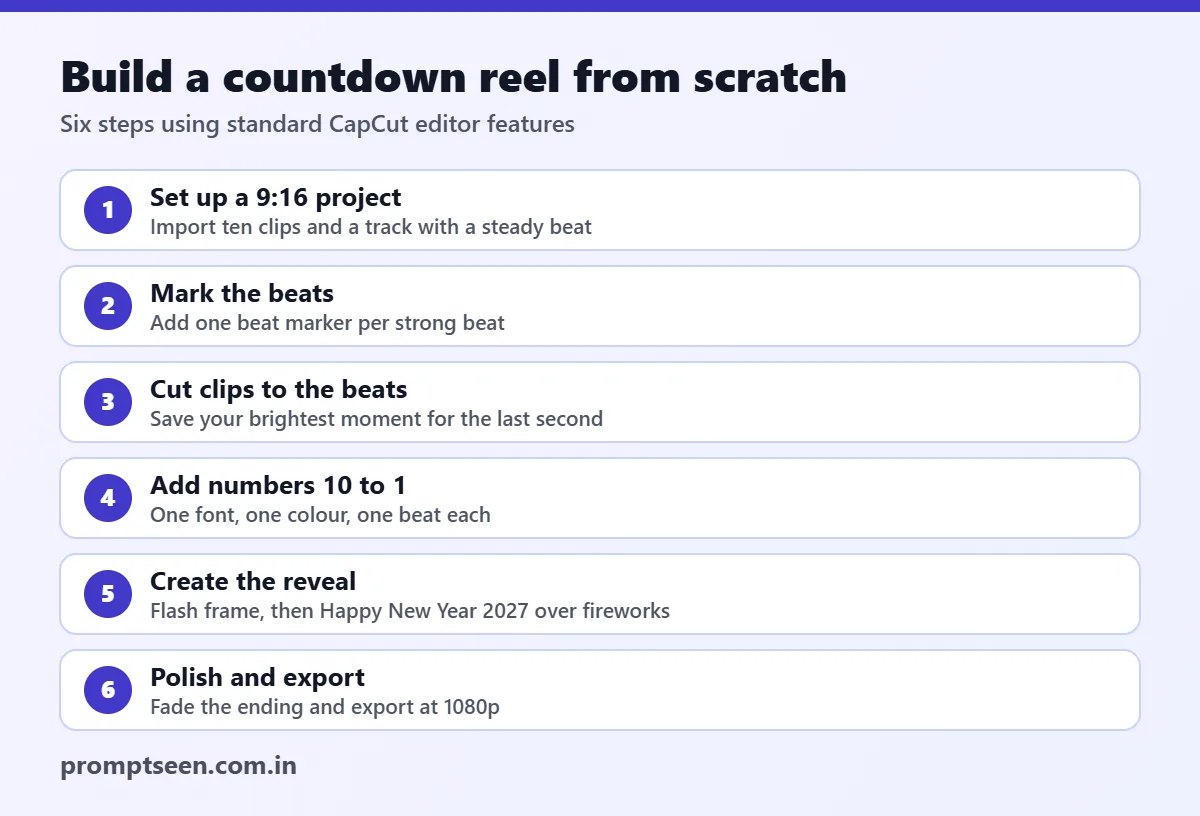
Templates are quick, but they disappear, change or get copied by thousands of people. Building your own countdown takes about fifteen minutes and gives you full control over the music, the numbers and the final reveal. These steps use standard CapCut editor features rather than a template.
1. Set up the project
Start a new project, set the aspect ratio to 9:16 and import ten short clips or photos plus your music track. A track with a clear, steady beat makes the countdown much easier to time.
2. Mark the beats
Select the audio track and add beat markers, either automatically or by tapping along while the music plays. You need ten markers for a ten-second countdown, ideally one per strong beat.
3. Cut your clips to the beats
Trim each photo or clip so it ends exactly on a marker. Put calmer images early and save your brightest, happiest moment for the final second before midnight.
4. Add the numbers
Add a text layer for each number from 10 to 1, each lasting one beat. Use one bold font and one colour throughout. A subtle scale-up animation on each number reads clearly without looking cheap.
5. Create the reveal
After “1”, place a short flash or white frame, then your “Happy New Year 2027” message over a fireworks clip. If you have a fireworks video on a dark background, add it as an overlay and set its blend mode to Screen so only the bright sparks show over your photo.
6. Polish and export
Add a gentle fade at the end so the reel can loop, check that no text sits under Instagram’s buttons, and export at 1080p. Save the project so you can swap in a real midnight clip on the night.
| Element | Suggested setting | Why it helps |
|---|---|---|
| Reel length | 12–20 seconds | Long enough for a countdown and reveal, short enough to rewatch |
| Numbers | One font, one colour, centred | Readable in a fraction of a second |
| Fireworks overlay | Blend mode: Screen | Removes the dark background so sparks sit on your photo |
| Final frame | Hold for 2 seconds | Gives viewers time to read your 2027 message |
Posting checklist for 31 December
- Export your reel by the afternoon of 31 December so a slow upload does not make you miss midnight.
- Write the caption in advance and keep it short; people scroll fast at midnight.
- Add two or three relevant hashtags rather than a long block.
- Check the first frame as a thumbnail. If it looks dull, choose a cover image while uploading.
- Reply to early comments in the first hour; it is the busiest time of the night for your followers.
No CapCut in India? Three practical alternatives
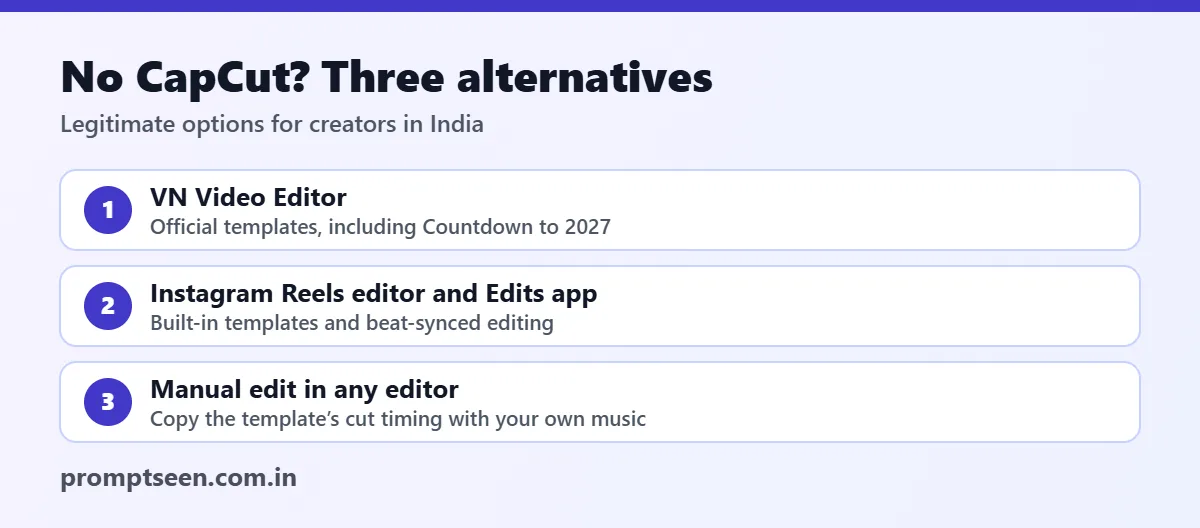
Because CapCut is not officially offered on Indian app stores, many Indian creators recreate the same style in other apps. These options are legitimate and widely used.
- VN Video Editor. VN has its own official template library with New Year designs, including a “Countdown to 2027” template, and supports templates shared through QR codes.
- Instagram’s Reels editor and Edits app. Instagram offers templates and a beat-sync style editor inside the app, so you can rebuild a simple countdown reel without a separate editor.
- Manual edit in any editor. Note the template’s cut timing while previewing it, then recreate those cuts with your own music in an editor available in your region.
Whichever app you use, the principles stay the same: a strong first frame, matching colours and a clear 2027 message. Our template customisation guide explains how to make any pre-built edit look like your own.
Common problems and quick fixes
| Problem | What to do |
|---|---|
| The template link shows “Access Denied” or does not load | CapCut may be unavailable in your region. Use one of the alternatives above. |
| The template opens but shows 2026 text | Check whether the text layer is editable. If not, choose another 2027 template. |
| Music is missing after upload | The track may not be licensed on that platform. Mute the template audio and add a song inside the app you post to. |
| Photos look stretched | Use photos taken in portrait orientation, or adjust the crop inside each slot. |
| The template disappeared | Creators can remove templates. Search CapCut’s New Year category for a similar design. |
| Export is blurry | Export at the highest resolution offered and upload the original file. |
Frequently asked questions
Where can I find more Happy New Year 2027 CapCut templates?
Search CapCut’s template section for “happy new year 2027” or browse its New Year category. More 2027 designs usually appear in the second half of December.
Are CapCut templates free?
Many templates can be used without paying, but some effects or features may require CapCut Pro. CapCut shows this inside the template before you export.
Can I use a 2026 template for 2027?
Only if the year text is editable. Templates with the year baked into an effect or sticker cannot be changed, and an old year looks careless on 1 January.
How many photos do I need for a New Year template?
It depends on the template. Check the slot count in the preview before you start; greeting templates may need one photo, while recap templates can need ten or more.
Why do some templates have very few uses?
They were uploaded recently. Use counts grow quickly in late December, so a low number in November simply means the template is new.
Is it safe to use AI-generated fireworks in my reel?
Yes, for personal greetings. For brand or paid posts, follow the platform’s rules on labelling AI-generated content.
Wrapping up
Start with Good Bye 2026 or Welcome 2027 if you want a memories-to-celebration reel, pick one of the Happy New Year 2027 greeting designs for midnight wishes, and keep the Christmas 2026–2027 template for the holiday week. If CapCut does not work where you are, the same ideas carry over to VN and Instagram’s own editor with a few minutes of extra work.