CapCut Velocity Template: 35 Recipes for Smooth Speed Ramps
A CapCut velocity template uses speed ramps so your clip speeds up between beats and slows down exactly on them, creating the smooth, punchy rhythm that fills short-video feeds. This guide gives you 35 copy-ready recipes for beginner, dance, vehicle, travel, transition and advanced velocity edits, plus a clear explanation of speed curves, frame rates and how to make velocity look smooth instead of choppy.
Each recipe has a copy button so you can keep it on screen while you edit.
What Is a Velocity Edit?
A velocity edit is a video where the playback speed changes in rhythm with the music. Movements race forward between beats and slow down dramatically on the beat, so every important moment lands with impact. The style became hugely popular on short-video platforms because it makes ordinary clips, such as a walk, a hair flip or a car passing, feel cinematic and energetic.
Speed ramps explained
A speed ramp is a gradual change from one speed to another. Instead of jumping from fast to slow, the clip eases between speeds. Smooth ramps are what make velocity edits feel fluid rather than jerky.
Why velocity edits are addictive
Velocity combines two things viewers love: rhythm and contrast. The fast parts create energy, the slow parts create emphasis, and the sync with music makes the whole clip satisfying to watch on repeat.
Template or manual?
Velocity templates apply ready-made speed curves to your clip, which is fast but rigid. Manual velocity, using the custom speed curve, lets you match any song and any clip precisely. This guide covers manual techniques you can also use to adjust templates.
Where velocity edits work best
Velocity is perfect for content that is about movement and energy: dance, sports, cars, fashion, travel and festivals. It is less suited to calm storytelling, talking videos or tutorials, where constant speed changes can distract from the message. Choosing the right moments for velocity is just as important as building a perfect curve.
Many creators use velocity only for the hook, the first few seconds of a reel, and then switch to normal speed for the rest. This grabs attention immediately without tiring viewers.
Understanding Speed Curves
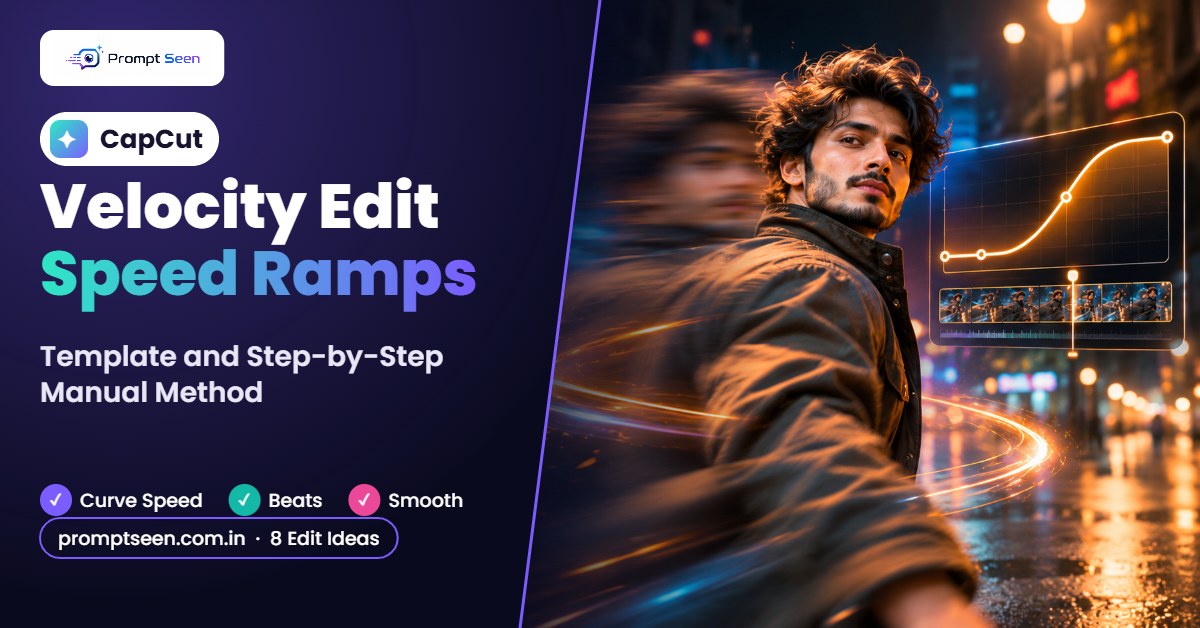
In CapCut, speed curves are found under Speed, then Curve. You can choose presets, but the custom curve gives full control. The curve shows speed on the vertical axis and time on the horizontal axis. Higher points mean faster playback; lower points mean slower playback.
| Curve shape | What it does | Use it for |
|---|---|---|
| High then low | Fast then slow | Landing on a beat |
| Low then high | Slow then fast | Releasing energy after a moment |
| Valley | Slow moment in the middle | Highlighting a single action |
| Mountain | Fast burst in the middle | Transitions and whip pans |
| Waves | Repeated slow and fast | Classic beat-synced velocity |
Practise reading the curve by watching how the clip changes as you move a single point. After a few tries, you will be able to shape velocity curves almost by instinct, matching any song in a few minutes.
How to Make a Velocity Edit Step by Step
- Add your song first and mark the beats with beat detection or manual markers.
- Add your clip and choose Speed, then Curve, then Custom.
- Move the curve points so the low points line up with beat markers.
- Raise the points between beats for fast sections.
- Smooth the curve so changes are gradual, not sudden.
- Preview with sound, adjust timing, then add motion blur, shake or glow on beats.
35 CapCut Velocity Template Recipes
Recipes are grouped by type. Start with the basic recipes, then try dance, vehicle, travel and transition styles.
Basic Velocity Edit Recipes
Start here if you are new to speed ramps.
Dance and Music Velocity Recipes
Match speed to choreography and rhythm.
Vehicle and Sports Velocity Recipes
High-energy edits for movement.
Travel and Lifestyle Velocity Recipes
Smooth velocity for everyday content.
Transition Velocity Recipes
Use speed to hide cuts and create smooth transitions.
Advanced Velocity Settings Prompts
Fine-tune for a professional feel.
Festival and Occasion Velocity Recipes
Speed ramps for celebrations.
Walkthrough: Your First Velocity Edit
Here is a simple exercise to learn the CapCut velocity template technique in about ten minutes using one walking clip.
Step 1: Record the clip
Ask a friend to film you walking towards the camera for about eight seconds in good daylight. If your phone allows, record at 60 frames per second.
Step 2: Mark the beats
Add an energetic song and use beat detection, or tap markers on each beat. Choose a section of about five seconds that includes a strong beat or drop.
Step 3: Shape the curve
Open the custom speed curve. Pull points down to around 0.5x where they meet beat markers, and push the points between them up to around 3x. Smooth the curve so it flows like gentle waves.
Step 4: Add impact
Add a quick flash or light shake exactly on the biggest beat, and a light motion blur on the fast sections.
Step 5: Review and export
Watch it with sound several times. Move any curve point that feels early or late, then export at 1080p. Once this feels natural, try the dance, vehicle and transition recipes above.
Typical Speed Values
| Moment | Typical speed | Feel |
|---|---|---|
| Between beats | 2x to 4x | Energetic, rushing |
| On the beat | 0.3x to 0.6x | Emphasis, impact |
| Near freeze | 0.1x to 0.2x | Dramatic pause |
| Normal sections | 1x | Natural breathing room |
These values are starting points. Faster songs often need shorter, sharper ramps, while slower songs suit longer, gentler curves.
Repeat the exercise with a different clip, such as a hair flip or a car passing, and you will quickly see how the same curve shape adapts to any movement.
Choosing the Right Clip and Song
| Clip type | Velocity potential | Tip |
|---|---|---|
| Continuous movement (walking, dancing) | Excellent | Keep the camera steady |
| Clear action moment (jump, kick, flip) | Excellent | Slow on the peak |
| Vehicles passing | Great | Film from the side for clear speed |
| Static shots | Poor | Add camera movement while filming |
| Very short clips | Limited | Use at least 3 to 5 seconds |
Songs with clear, strong beats and a noticeable drop work best. Phonk, hip hop, EDM and energetic Bollywood tracks are popular choices. Use music that is allowed on the platform where you post.
Try the same clip with two different songs. You will see how the music changes where the slow moments should fall, which is great practice for timing.
Filming for Velocity
Shoot more than you need
Velocity squeezes and stretches time, so a three-second moment can become one second or six seconds. Record a few extra seconds before and after the action.
Keep movement continuous
Velocity works best when something is always moving: you, the camera or the subject. Continuous motion makes speed changes visible.
Use good light
Slowed footage reveals noise and blur. Daylight or bright indoor light keeps slow sections crisp.
Steady camera
A tripod or gimbal gives cleaner results, though a little handheld movement can add energy when speed is fast.
Shot ideas that suit velocity
- Walking towards the camera through a doorway or archway
- A dupatta, scarf or jacket swinging during a spin
- Water splashing, colour powder or confetti in the air
- A car or bike passing close to the camera
- A ball being hit, kicked or thrown
Common Problems and Fixes
Slow parts look choppy
Quick fix
Film at 60 fps, use smooth slow motion or frame interpolation, and avoid slowing below about 0.3x on 30 fps footage.
Ramps feel sudden
Quick fix
Spread the curve points out and smooth the transitions between fast and slow.
Velocity does not match the beat
Quick fix
Add beat markers first, then move curve points onto them. Preview with sound often.
Video is shorter or longer than expected
Quick fix
Speed changes alter total duration. Adjust curve heights or trim the clip to fit the music section.
Making Velocity Your Own Style
Velocity is a popular trend, so thousands of similar edits are posted every day. Stand out by choosing unusual subjects, such as a chai pour, a kite taking off or a street vendor flipping a dosa, rather than only walking clips. Pair velocity with a consistent colour grade and caption style, and you will start to build a recognisable look.
You can also use velocity more subtly. A single gentle speed ramp in a travel reel or wedding film can add elegance without screaming “trend edit”. Learning the CapCut velocity template technique well means you can choose when to go bold and when to keep it soft.
Posting Tips for Velocity Reels
- Keep reels short, usually 7 to 15 seconds, so viewers replay them.
- Start with motion in the very first frame; no slow intros.
- Use a hook caption such as “Wait for the drop”.
- Post the same edit with a trending sound inside the platform for better reach.
- Reply to comments asking “how” with a quick tutorial reel; it often performs well.
Save your best curve as a preset or keep the project as a starting template for future velocity edits.
Understanding Frame Rate
Smooth slow motion depends on frame rate, the number of images captured each second. More frames give the editor more information to stretch time without stutter. The Wikipedia article on frame rate explains this clearly if you want to understand why 60 fps footage slows down better.
If your phone offers a slow-motion recording mode, use it for the key action shots you plan to slow down. You can always speed footage up, but you cannot add frames that were never recorded.
More CapCut Guides
Velocity pairs perfectly with our CapCut beat template guide. For calm slow-motion moments, read CapCut slow motion, and for a film look, see CapCut cinematic edits.
Start with the Classic Walk Velocity recipe today. Once your curves feel smooth, every other style in this guide becomes easy.
Related Guides
Frequently Asked Questions
What is a CapCut velocity template?
It is an edit where playback speed changes with the music, speeding up between beats and slowing down on them using speed ramps.
How do I make a velocity edit in CapCut?
Add music and beat markers, open Speed then Curve then Custom, and shape the curve so slow points land on beats and fast points fall between them.
Why does my velocity edit look choppy?
Slowed 30 fps footage can stutter. Film at 60 fps, use smooth slow motion and avoid extreme slow speeds.
What songs are best for velocity?
Songs with clear beats and a strong drop, such as phonk, hip hop, EDM and energetic Bollywood tracks.
Is CapCut available in India?
CapCut has not been officially available on Indian app stores since 2020. Velocity edits can be made in other apps with speed curve tools.
Can I use a velocity template instead?
Yes. Templates apply ready-made curves, but manual curves give you more control and work with any song.