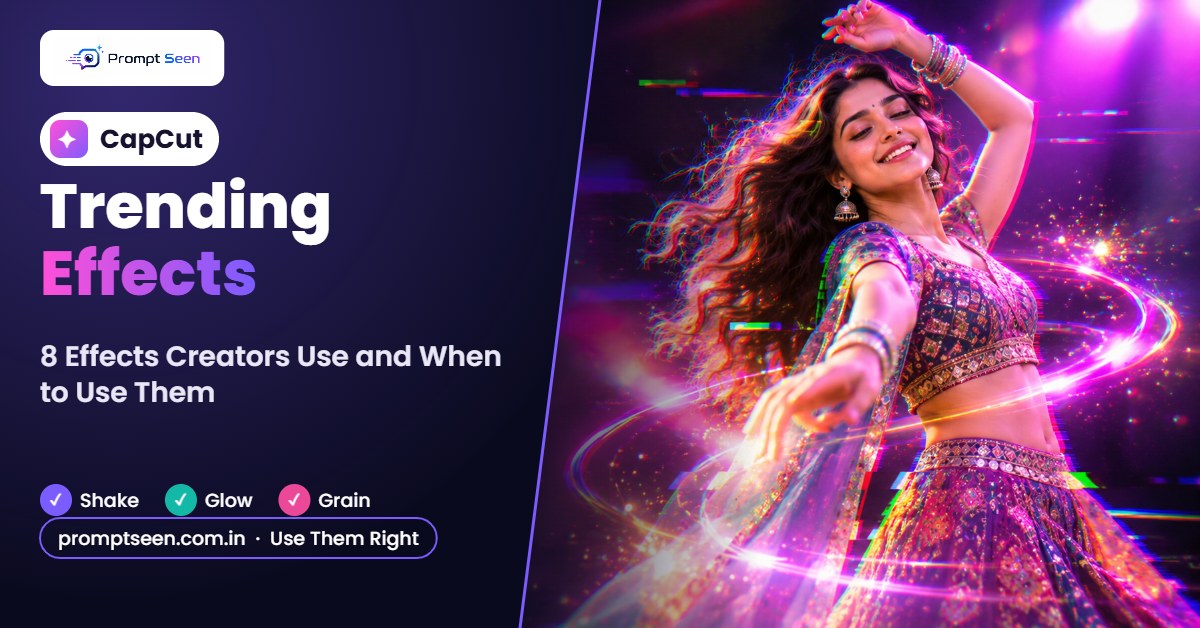
CapCut Trending Effects: 37 Effects Creators Use and When to Use Them
CapCut trending effects can turn a simple clip into a reel that feels energetic, dreamy or cinematic, but only when they are used at the right moment. This guide gives you 37 copy-ready effect recipes for impact effects, glitches, glows, speed changes, body and face effects, colour looks and text, and explains when to use each one so your reels look polished rather than overloaded. Browse all categories on Prompt Seen if you want more ideas.
Each recipe has a copy button so you can keep it open while editing.
Whether you edit dance reels, travel films or product videos, the right effect at the right moment can lift your content.
Why Effects Trend
Effects trend when they create a strong moment that viewers notice and want to recreate: a flash on a beat drop, a glitch that matches a bass hit, a colour switch that reveals a transformation. When many creators use the same effect, it becomes part of a recognisable trend style.
Effects support, they do not replace
An effect works best when it emphasises something already happening: a beat, a reveal, an emotional moment. Effects added without purpose distract viewers and make reels look amateur.
Less is more
Most strong reels use one or two effect types consistently, saving the biggest effect for the most important moment.
How trends in effects change
Effect trends come in waves. A few years ago, heavy glitch effects were everywhere; then soft glows and film grain became popular; recently, smooth velocity ramps and subtle colour switches have dominated. Instead of chasing every new effect, understand the feeling each effect creates. That way you can use whichever effect is trending while still keeping your reels true to the mood you want.
Keep an eye on which effects appear repeatedly in trending reels in your niche, and test one new effect each week to see how your audience responds.
Understanding the feeling behind each effect matters more than chasing the newest one.
Choosing the Right Effect
| Mood | Effects that fit | Avoid |
|---|---|---|
| Energetic | Flash, shake, zoom punch, velocity | Slow fades |
| Dreamy | Glow, light leaks, soft slow motion | Hard glitches |
| Tech and gaming | RGB glitch, scan lines, neon | Pastel glows |
| Cinematic | Teal and orange, lens flare, slow motion | Strobe, stickers |
| Nostalgic | Film grain, VHS, faded colour | Neon outlines |
| Playful | Outline cutout, sparkles, text bounce | Heavy moody grades |
A clear mood makes choosing effects simple.
Matching effect to mood is the single most important rule in this guide.
How to Use These Effect Recipes
- Choose the mood of your reel first.
- Pick one or two effects that match that mood.
- Mark the beats and key moments in your clip.
- Place effects exactly on those moments.
- Keep intensity moderate and check on a phone screen.
- Remove any effect that does not add meaning.
37 CapCut Trending Effects Recipes
Recipes are grouped by type. Each one explains where and how to apply the effect.
Impact Effect Prompts
Effects that hit with the beat.
Glitch and Digital Effect Prompts
Modern, techy looks.
Glow and Light Effect Prompts
Dreamy and magical.
Motion and Speed Effect Prompts
Change how time feels.
Body and Face Effect Prompts
Fun and trendy AI effects.
Colour and Film Effect Prompts
Change the mood with colour.
Text Effect Prompts
Words with energy.
Festival and Occasion Effect Prompts
Effects that celebrate.
Pick recipes from one or two groups per reel to keep the style consistent.
Start simple and build up.
Walkthrough: A 10-Second Effect-Driven Reel
Step 1: Pick clips and song
Choose three clips, such as a walk, a close-up and a wide shot, and a song with a clear drop.
Step 2: Mark beats
Mark the beats and the drop.
Step 3: Add motion
Apply a velocity ramp to the walk so it slows on the beats.
Step 4: Add impact
Place a white flash and a short shake exactly on the drop as you cut to the close-up.
Step 5: Add colour and text
Switch from black and white to colour on the drop and add one bold word with a text slam. Export at 1080p.
Matching Effects to Your Niche
Different niches suit different effects. Fashion creators often use flashes, outfit transitions and sparkles. Gaming and tech creators lean on glitches, scan lines and neon. Travel creators prefer cinematic grades, light leaks and smooth slow motion. Food creators use slow motion, glow and satisfying zooms. Choosing effects that match your niche keeps your content consistent and helps viewers recognise your style.
| Niche | Signature effects |
|---|---|
| Fashion | Flash, sparkle, outfit transitions |
| Gaming | RGB glitch, shake, neon outline |
| Travel | Teal and orange, light leaks, slow motion |
| Food | Slow motion, glow, zoom |
| Fitness | Velocity, shake, black and white to colour |
| Aesthetic | Film grain, soft glow, light leaks |
Layering Effects Without Clutter
Sometimes you will want more than one effect at the same moment, such as a flash with a shake and a text slam on a drop. Layer them carefully: keep each one short, make sure they start on the same frame and lower the intensity of each so the combination does not overwhelm. Then let the next few seconds stay clean so the moment stands out.
Effects and Storytelling
Think of effects as punctuation in a sentence. A flash is like an exclamation mark, a slow fade is like a pause, and a glitch is like an interruption. Used thoughtfully, effects guide viewers through your reel, telling them when to pay attention, when to feel something and when a change has happened. Random effects are like random punctuation: confusing and distracting.
Before adding an effect, ask what it is saying. If you cannot answer, the reel probably works better without it.
Simple, well-timed effects almost always beat complex, constant ones.
Effect Intensity Guide
| Effect | Recommended intensity | Duration |
|---|---|---|
| Flash | Medium | 2 to 3 frames |
| Shake | Low to medium | Under half a second |
| Glitch | Medium | 2 to 4 frames |
| Glow | Low | Throughout or on highlights |
| Film grain | Low | Throughout |
Strong effects are best kept short. Long flashes or shakes can feel uncomfortable, especially on phone screens.
Check every effect on a phone at normal brightness before posting.
Making CapCut Trending Effects Your Own
Trending effects look the same in thousands of reels. Make them yours by combining them with your signature colour look, applying them to unexpected subjects, such as a chai pour instead of a dance, or using them to emphasise a personal moment. The creativity is in where and why you use the effect.
Performance Tips
Heavy effects can slow down editing, especially on older phones. Add effects at the end of the edit, after cuts and timing are final. Render a preview before watching the whole reel, and close other apps to free memory. If the app keeps crashing, export sections separately and join them in a final project.
- Finish cutting before adding effects.
- Apply heavy effects only to short sections.
- Render previews for smooth playback.
- Keep enough free storage for exports.
Saving effect presets for your favourite settings speeds up every future edit and keeps your style consistent across reels.
Common Problems and Fixes
Reel looks cluttered
Quick fix
Remove half of the effects and keep only those on key moments.
Effects feel off-beat
Quick fix
Align effects to beat markers and move them a frame earlier if needed.
Video lags while editing
Quick fix
Render previews, close other apps and apply heavy effects at the end.
Effects look cheap
Quick fix
Lower intensity and match effects to the mood of the music.
Effects for Business Reels
Businesses can use effects to highlight products without looking like ads. A sparkle on jewellery, a slow-motion pour for a cafe, a colour pop on a featured dress or a clean zoom on a gadget draws attention to what matters. Keep effects subtle and on-brand, and pair them with clear captions about price or availability.
Subtle effects keep the focus on the product, which is exactly what customers need to see.
Always preview effects at full speed before posting.
Accessibility and Comfort
Very bright flashing and strong strobe effects can cause discomfort and may affect people with photosensitivity. Keep flashes short and moderate, and avoid rapid repeated strobing. Many glitch effects are inspired by digital art; the Wikipedia article on glitch art explains the art movement behind them.
A Weekly Effect Practice Plan
| Week | Effect to master | Practice reel |
|---|---|---|
| 1 | Flash and zoom punch | Beat drop reel |
| 2 | Velocity ramp | Walking or car reel |
| 3 | Black and white to colour | Transformation reel |
| 4 | Soft glow and film grain | Aesthetic reel |
Mastering one effect per week builds a toolkit you can use confidently. After a month, you will know exactly which effect to reach for in any situation, and your reels will look more intentional.
Effects are tools, not decoration. Use them to highlight beats, reveal changes and express mood. When every effect has a reason, your reels feel polished, professional and enjoyable to watch, whatever the latest trend happens to be.
Keep experimenting, and keep only what works.
More Guides
For speed effects, see the CapCut velocity template. For smooth scene changes, try the CapCut transition template, and for AI tools, read CapCut AI tools.
Choose one effect from this guide, apply it to the key moment in your next reel and notice the difference. Used with purpose, CapCut trending effects can make even simple clips feel exciting.
Related Guides
Frequently Asked Questions
What are CapCut trending effects?
They are popular visual effects, such as flashes, shakes, glitches, glows, speed ramps and colour switches, that many creators use in trend reels.
How many effects should I use in one reel?
One or two effect types used consistently, with the strongest effect saved for the key moment.
Is CapCut available in India?
CapCut has not been officially available on Indian app stores since 2020. Similar effects exist in Instagram Edits, VN, InShot and desktop editors.
How do I make effects match the music?
Mark beats and place effects exactly on them, moving them a frame earlier if they feel late.
Are flashing effects safe?
Keep flashes short and moderate, and avoid rapid strobing, which can cause discomfort.
Which effects suit aesthetic reels?
Soft glow, light leaks, film grain and gentle slow motion suit aesthetic reels.