Picsart AI Expand: 35 Prompts to Extend Photos Without Cropping
Picsart AI Expand lets you extend a photo beyond its original edges, so you can change its shape, fix tight framing, add space for text or reveal more of a scene without cropping. This guide gives you 35 copy-ready prompts for social media sizes, framing fixes, travel scenes, product banners, creative reveals and old photos, plus tips to make the new areas blend naturally.
Every prompt has a copy button. Open your photo in Picsart, choose AI Expand, paste the prompt and generate.
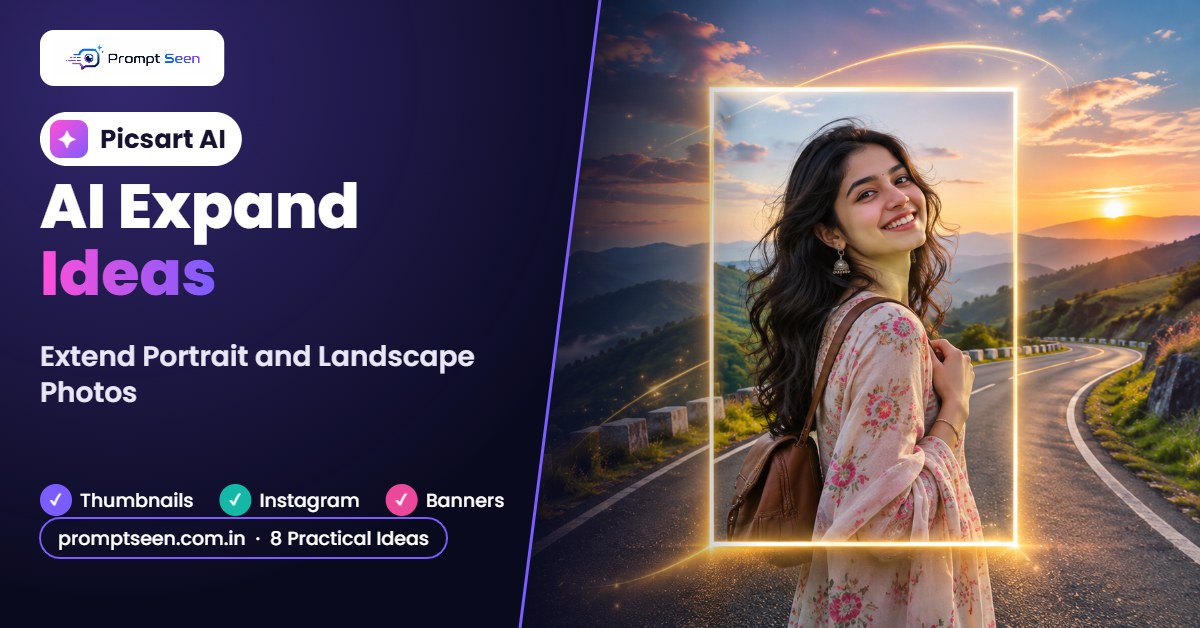
What Is Picsart AI Expand?
AI Expand, sometimes called outpainting or generative expand, uses AI to imagine what lies beyond the edges of your photo. It studies the colours, textures, light and perspective of the image and then paints new areas that continue the scene. Instead of cropping a photo to fit a new shape, you grow it.
Why expanding beats cropping
Cropping always removes something. If you crop a landscape photo into a vertical story, you lose most of the scene. Expanding keeps everything you photographed and adds new space where you need it.
When to use it
Use AI Expand when a photo is the wrong shape for a platform, when someone’s head or feet are cut off, when you need empty space for text, or when you want a wider, more dramatic view.
Free and paid access
Picsart offers some AI tools with limited free use and more with a paid plan. Availability and names of features can change between app versions.
Prompt or no prompt?
Many expand tools can work without any text, simply continuing what they see. That is often enough for plain skies, walls and floors. A prompt becomes valuable when you want something specific in the new space, such as more mountains, a matching table surface, empty room for text or even a creative reveal. Think of the prompt as direction for the AI rather than a requirement.
If you are unsure, try both. Generate once without a prompt and once with one of the prompts below, then keep the version that looks most natural.
How to Use These Picsart AI Expand Prompts
- Open the Picsart app or website and upload your photo.
- Choose the AI Expand tool from the tools menu.
- Select the new size or drag the canvas edges to where you want more image.
- Paste a prompt from below to guide what fills the new space.
- Generate a few versions and choose the most natural one.
- Check the edges, then save or continue editing.
35 Picsart AI Expand Prompts
Prompts are grouped by purpose. Even when the tool works without a prompt, adding one gives you more control over what appears in the new space.
Resize for Social Media Prompts
Extend a photo to fit a new shape without cropping.
Fix Tight Framing Prompts
Rescue photos where something got cut off.
Landscape and Travel Expand Prompts
Make scenery feel bigger and more cinematic.
Product and Business Expand Prompts
Create flexible images for shops and ads.
Creative Expand Prompts
Use expansion to tell a bigger story.
Old Photo and Memory Expand Prompts
Give old photos more room.
Portrait and Selfie Expand Prompts
Turn close selfies into fuller, more flexible portraits.
How AI Expand Works in Simple Words
When you enlarge the canvas, the tool sees a blank area around your photo. The AI looks closely at the pixels near the edges, the colours, shapes, textures and light direction, and predicts what would most likely continue there. It then fills the space with new image content that blends into the original. Your prompt acts like a hint, telling the AI what kind of content you want in the new area.
Because the AI is predicting rather than recovering real information, the new areas are imaginary. They can look completely convincing, but they are not what was actually there when the photo was taken. That is fine for social posts, banners and creative work, but it matters for photos used as evidence or records.
Before You Expand: A Quick Checklist
- Start from the highest-resolution version of the photo you have.
- Decide the final platform and ratio before expanding.
- Check that the edges of the original are clean; blurry edges spread into the new area.
- Remove distracting objects near the edges first, so they are not copied outward.
- Plan where text or logos will go, and leave that space plain.
Five minutes of preparation like this usually means one clean expansion instead of several attempts.
Common Sizes to Expand To
| Platform | Ratio | Expand direction |
|---|---|---|
| Instagram story and Reels cover | 9:16 | Up and down |
| Instagram post | 4:5 or 1:1 | Up and down, or sides |
| YouTube thumbnail | 16:9 | Left and right |
| LinkedIn banner | 4:1 | Wide left and right |
| Pinterest pin | 2:3 | Down |
| Printed photo frame | 4:6 or 5:7 | Depends on original |
Choose the ratio first, then expand. Changing your mind afterwards means expanding again from the original, which gives better quality than expanding an already expanded image.
Making Expanded Areas Look Natural
Match light and perspective
Mention the light in your prompt: “matching warm sunset light” or “same soft daylight”. If the original was taken from a low angle, say so, so the horizon and floor continue correctly.
Keep the background simple
Simple backgrounds such as sky, walls, sand, grass and water expand most convincingly. Busy scenes with people, text and signs are harder and more likely to show errors.
Watch for repeated patterns
AI sometimes repeats trees, windows or clouds in an obvious way. Generate a few versions, or use a retouch or remove tool to fix repeats.
Protect the subject
Add “keep the subject unchanged” to prompts, especially with people. The goal is to grow the background, not redraw the person.
Lighting words that help blending
- “same soft daylight” for overcast or indoor window light
- “matching warm golden hour light” for sunsets
- “consistent shadows falling to the right” when shadows are visible
- “same depth of field, background softly blurred” for portrait-mode photos
Walkthrough: One Photo, Three Formats
Imagine you have a square photo from a hill station trip and want to post it everywhere. Here is how AI Expand helps.
Format 1: Instagram story
Use the Square to Story prompt to extend the sky above and the path below. The result fills the whole phone screen without cutting off any of the original.
Format 2: YouTube thumbnail
Go back to the original and use Wider Mountain View to extend left and right into 16:9. Add “empty space on the left for text” if you plan to add a title.
Format 3: Printed frame
Finally, use Album to Frame or a gentle expand to fit a 4:6 print, keeping colours consistent. You now have three formats from one photo, with nothing important cropped away.
This approach saves time and keeps your posts consistent across platforms. Instead of taking separate photos for each format, one good image can serve your feed, stories, thumbnails and prints. It also means your best shot, not a second-choice photo, appears everywhere.
Common Problems and Fixes
Visible seam between old and new
Quick fix
Generate again, expand in smaller steps, or use a healing or retouch tool along the seam.
Strange objects appear
Quick fix
Add “simple, natural background, no extra people or objects” to the prompt.
Expanded area is blurry
Quick fix
Use a higher-resolution original and avoid extreme expansions.
Person looks stretched
Quick fix
Make sure the canvas is expanded, not the image stretched, and add “keep the subject unchanged”.
Combining AI Expand With Other Picsart Tools
AI Expand works even better as part of a small workflow. First remove any unwanted objects with an eraser or remove tool, then expand the canvas, then use colour adjustments to make the whole image consistent. If you plan to add text, finish with the text tool and stickers. Doing clean-up before expansion stops the AI from copying distractions into the new space.
Who Uses AI Expand Most
| User | Typical job | Prompt to start with |
|---|---|---|
| Social media creators | One photo for feed, story and thumbnail | Square to Story |
| Small businesses | Banners with space for offers | Product Banner |
| Travellers | Wider, more dramatic scenery | Wider Mountain View |
| Families | Fitting old photos into frames | Album to Frame |
| Designers | Safe margins for ads and layouts | Ad Safe Margins |
Whatever your use, the same rules apply: simple backgrounds, matching light and gentle expansions produce the most natural results.
Save your favourite expand prompts in a notes app with the ratio you used. Reusing them makes resizing new photos for every platform almost instant.
Understanding Aspect Ratios
Most expansion jobs are really about changing the aspect ratio, the relationship between width and height. Knowing the common ratios helps you choose the right size before you expand. The Wikipedia article on aspect ratio explains how these ratios work and where they are used.
Using Expanded Photos Honestly
Expanding a background for a social post or banner is a normal creative edit. Be more careful when a photo needs to show reality, such as a property listing, a product photo for sale, a news image or a document. Adding imaginary rooms, extra features or crowds that were not there can mislead people. In those cases, either avoid expansion or keep the added areas plain and neutral, such as more sky or wall.
For family photos, it is a good idea to keep the original alongside the expanded version, so the real record of the moment is never lost.
Expand for Print vs Screen
Screens are forgiving: small imperfections in expanded areas are hard to notice on a phone. Prints are not. If you plan to print an expanded image, especially large, zoom in to 100 percent and inspect the new areas carefully for blur, repeated patterns or odd shapes. Gentle expansions of simple backgrounds print best, while large creative expansions are usually better kept for screens.
A good rule: expand backgrounds freely for fun and design, but keep important factual details exactly as they were photographed.
Picsart AI Expand vs Other Tools
| Tool | Name of feature | Best for |
|---|---|---|
| Picsart | AI Expand | Mobile edits and social sizes |
| Canva | Magic Expand | Designs and posts |
| Adobe Express | Generative expand | Brand designs |
| Gemini | Edit by prompt | Natural, conversational changes |
For changing backgrounds rather than expanding them, see our Picsart AI background prompts. For design work, the Canva Magic Media prompts and Adobe Express LinkedIn banner guides are useful.
Try Picsart AI Expand on one photo you love but could never post because it was the wrong shape. It is often the quickest way to rescue a favourite image.
Related Guides
- Picsart AI background prompts
- Canva Magic Media prompts
- Adobe Express AI LinkedIn banner
- Google Gemini AI photo editing prompts
Frequently Asked Questions
What is Picsart AI Expand?
AI Expand extends a photo beyond its edges by generating new areas that continue the scene, so you can change the shape without cropping.
How do I expand a photo in Picsart?
Open the photo, choose AI Expand, set the new size or drag the edges, add a prompt if you like, and generate.
Is Picsart AI Expand free?
Picsart offers limited free use of some AI tools and more with a paid plan. Availability can change.
How do I make expanded areas look natural?
Match light and perspective in your prompt, keep backgrounds simple and expand in smaller steps.
Can I turn a square photo into a story?
Yes. Expand the photo upward and downward to a 9:16 vertical format.
Does AI Expand work on old photos?
Yes. Ask it to match the vintage colour and grain and keep every face unchanged.